


How to Fix the Klaviyo Retina Warning
Seeing an image below the 1.5× Retina threshold does not mean your email is broken. It means one image may not look as sharp as Klaviyo recommends on high-resolution screens.
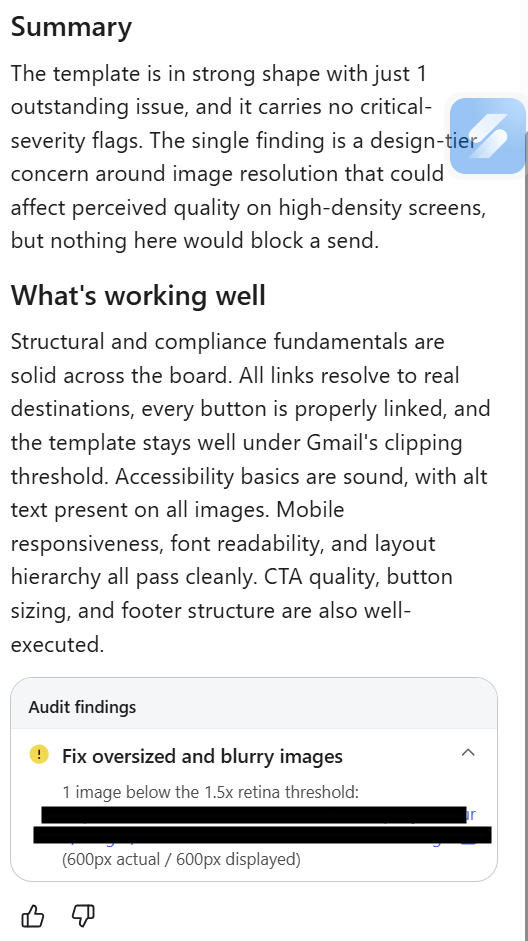
1 image below the 1.5× Retina threshold: image (600px actual / 600px displayed)
This is a quality warning, not an error. Your email can still send. The easiest fix is to upload an image that is approximately 1.5 to 2 times wider than the size at which it appears in the email.
Your email is not broken. Klaviyo is warning you about image quality.
What Does the Klaviyo Retina Warning Mean?
Imagine trying to print a tiny photograph onto a large poster.
The photograph stretches to fill the space, but the extra size does not create extra detail. The result can look soft or blurry.
The same thing can happen inside an email.
600px actual width
The uploaded image contains 600 pixels across.
600px displayed width
Klaviyo is using every available pixel with no extra detail for high-resolution screens.
A 600px image displayed at 600px may look fine on a standard screen. However, newer phones, tablets, and laptops often use high-resolution displays that benefit from additional image detail.
Klaviyo compares the image’s actual pixel dimensions with the size at which it appears in the email. If the ratio is lower than its recommended Retina threshold, Composer displays a warning.
It does not mean the image is missing, the email is broken, or the campaign cannot be sent.
Why Does Klaviyo Want a Bigger Image?
Many modern devices use Retina or high-resolution screens.
You do not need to understand the technology to fix the warning.
Think of it like this:
Standard screen
Like drawing with a normal pencil. A standard-resolution image may look perfectly acceptable.
High-resolution screen
Like drawing with a much sharper pencil. A low-resolution image can look softer because the screen reveals more detail.
That is why Klaviyo recommends uploading an image that is approximately 1.5 to 2 times wider than its displayed size.
Displayed width × 1.5 to 2 = recommended upload width
The image will still appear at the same size inside the email.
It simply contains more pixels, which helps it look sharper on modern screens.
Recommended Image Dimensions
| Displayed width | Recommended upload width |
|---|---|
| 300px | 450–600px |
| 600px | 900–1,200px |
| 800px | 1,200–1,600px |
If a banner is displayed at 600px wide, upload a version that is approximately 900–1,200px wide. Keep the displayed width in Klaviyo at 600px.
Useful starting sizes for common email images
| Image type | Recommended upload width |
|---|---|
| Logo | 400–600px |
| Product image | 800–1,000px |
| Email banner | Approximately 1,200px |
| Full-width hero image | 1,200–1,600px |
More pixels can improve sharpness, but unnecessarily large files can slow loading. Use the dimensions you need, compress the image, and preview the email before sending.
How to Fix the Klaviyo Retina Warning
In most cases, the warning can be fixed in less than a minute.
One-minute fix
- Check the displayed width shown by Klaviyo.
- Multiply that number by 1.5 or 2.
- Export or request an image at the larger width.
- Compress the image before uploading it.
- Replace the original image in Klaviyo.
- Preview the email on desktop and mobile.
Will the Warning Stop Your Email From Sending?
No.
The Retina threshold warning does not prevent the campaign from sending.
It does not directly affect:
- Email delivery
- Spam score
- Open rate
- Click rate
- Your ability to schedule or send the campaign
The only potential difference is visual. Some recipients may see an image that looks slightly softer than it could.
Your campaign can still send normally. Fix the image when visual quality matters, but do not treat the warning like a technical failure.
Can You Ignore the Retina Warning?
Sometimes.
The decision depends on how important the image is to the email.
Usually safe to review and leave
- Small logos
- Tiny icons
- Decorative shapes
- Images that already look sharp in previews
Usually worth fixing
- Hero banners
- Product photography
- Sale graphics
- Images containing text
- Brand-critical visuals
A slightly soft decorative icon may not matter.
A blurry product photograph or promotional headline can make the entire email look less professional.
Fix the images that sell. Review the images that decorate.
Why Does Klaviyo Flag an Image That Looks Fine?
Klaviyo cannot understand what the image is supposed to look like.
It does not visually judge whether the image appears acceptable.
Composer compares:
- The image’s actual pixel dimensions
- The size at which the image is displayed
- Klaviyo’s recommended Retina ratio
If the numbers fall below the recommended threshold, Klaviyo displays a warning—even when the image looks perfectly fine to you.
Preview the email on desktop and mobile before replacing an image that already looks sharp. Klaviyo provides a useful signal, but your visual review still matters.
Can You Ignore Other Klaviyo Composer Warnings?
Yes. Not every Composer warning has the same level of importance.
Most warnings fall into three categories:
- Technical problems
- Quality improvements
- Design recommendations
Technical problems
Problems such as broken links or missing images should normally be fixed before sending.
Quality and design suggestions
Review them carefully, but use judgment when the choice is intentional or supported by test results.
You may intentionally:
- Make one button larger to create visual hierarchy
- Position a discount code differently
- Use a larger headline to match your brand
- Keep a design choice that performed well in an A/B test
Klaviyo provides guidance. It does not know your brand strategy, audience preferences, or testing history.
Fix technical problems. Review quality warnings. Use judgment on design.
Klaviyo Composer Warnings: Which Ones Should You Fix?
| Warning | Fix it? | Why |
|---|---|---|
| Broken link | Yes | Subscribers cannot reach the intended page. |
| Missing image | Yes | The email may not display correctly. |
| Blurry image or Retina threshold | Usually | Improves image sharpness, but does not stop the email from working. |
| Oversized image | Usually | Large files can slow loading, especially on mobile. |
| Missing alt text | Yes | Improves accessibility and provides context when images do not load. |
| Design recommendation | It depends | Ignore it when the choice is intentional or supported by test results. |
| Button or heading suggestion | It depends | Your brand design or A/B test may outperform the default recommendation. |
The goal is to send an email that displays correctly, loads quickly, matches your brand, and performs well with your audience.
Frequently Asked Questions
Is “1 image below the 1.5× Retina threshold” an error?
No. It is a quality warning, not an error. Your email can still be sent, and nothing is technically broken.
Will my email still send if I ignore the warning?
Yes. The warning does not prevent the campaign from sending. It only indicates that an image may not look as sharp as Klaviyo recommends on certain high-resolution devices.
Does the Retina warning affect deliverability or spam placement?
The warning relates to image resolution. It does not directly change your sending ability, deliverability, or spam score.
Why does Klaviyo flag an image that looks fine?
Klaviyo compares the image’s actual dimensions with its displayed dimensions. It cannot visually understand whether the image already looks acceptable.
How do I fix a 600px actual / 600px displayed warning?
Upload an image that is approximately 900–1,200px wide while keeping the displayed width at 600px.
Can I make the image smaller instead?
Yes. Reducing the displayed width can improve the ratio between the image’s actual size and displayed size. This is useful when a larger source image is unavailable.
Should I always upload the largest image possible?
No. Very large files can slow loading. Upload the dimensions you need, compress the image, and preview the final email on desktop and mobile.
Should I always follow Klaviyo Composer recommendations?
No. Fix technical problems, review quality warnings, and use judgment on design suggestions. Intentional brand or testing decisions may be more important than a general recommendation.
Turn Better Email Design Into More Revenue
Find the biggest design, automation, and conversion leaks inside your Klaviyo account and get clear recommendations on what to fix first.
Request your free email audit → Clear recommendations. No vague marketing advice.